
THIS IS NOT THE MOST RECENT ISSUE OF THE OAT UPDATE
CONTENT MAY BE OUT OF DATE
Issue Contents
Announcements
Reminders
Missed an update? Browse the OAT Update archives
Announcements
Fall 2026 Professional Development Courses Available
Over the summer, these instructors improved their understanding of online course design and the place of AI in teaching and learning. They did this through free 3-week online courses administered by the Online Course Services division of the Chancellor's Office. Congratulations to these learners!
| Participant |
Department |
Course Completed |
| Sijing Zong |
Finance |
AI Tools For Teaching & Learning (For Faculty) |
| Allison Arroyo |
Modern Languages |
AI Tools For Teaching & Learning (For Faculty) |
| Timothy Brown |
Art |
Introduction to Teaching Online Using QLT |
| Christina Alger |
MOM |
AI Tools For Teaching & Learning (For Faculty) |
| Sheri Coburn |
Nursing |
Advanced QLT Course in Teaching Online |
| Kelly Cotter |
Psychology |
AI Tools For Teaching & Learning (For Faculty) |
| Julie Davidson |
Nursing |
AI Tools for Higher-Ed Professionals/Staff |
| Tzu-Man Huang |
Finance |
AI Tools For Teaching & Learning (For Faculty) |
| Jeanette Fanconi |
Child Development |
AI Tools For Teaching & Learning (For Faculty) |
| Vincent Laus |
Sociology |
AI Tools For Teaching & Learning (For Faculty) |
| Jenan Maaz |
Teacher Education |
Advanced QLT Course in Teaching Online |
| Debbie Olson Diaz |
Accounting |
AI Tools For Teaching & Learning (For Faculty) |
| Laura Rees |
Education |
Introduction to Teaching Online Using QLT |
| Yvette Jean |
Sociology |
AI Tools For Teaching & Learning (For Faculty) |
| David Zhu |
Accounting |
AI Tools For Teaching & Learning (For Faculty) |
Interested? Join the list by completing a course this Fall!
Courses offered
- Introduction to Teaching Online Using QLT
- Advanced QLT Course in Teaching Online
- AI Tools for Teaching & Learning
Session schedule
- Session #1: Oct. 5-25
- Session #2: Nov. 2-22
All courses are taught online, asynchronously by OCS staff.
Review the course descriptions and register
Return to top
Promoting Learning Assurance With Clarity
OAT is pleased to offer four introductory sessions about Turnitin Clarity. Stan State is piloting Clarity during the Fall 2026 semester. These sessions will occur biweekly from Sept. 4 to Oct. 16, all meetings from 12-1 pm.
 A muddled landscape
It's 2026 – are your assessments pedagogically sound but too easily bypassed by standard, un-guardrailed AI? Can you ensure that AI in your class actually follows your integrity policy? Can you look into the student's writing process to ensure a fair and data-driven resolution to any questions? Without consistent guardrails and instructional awareness, it can be difficult to guarantee assurance of learning across all your assignments.
Just stating "No AI use allowed" in your syllabus isn't enough any more. Students and instructors today remain confused and uncertain about what that technically means. This uncertainty leads to difficult situations regarding accusations of academic dishonesty that often leave students without clear means of establishing the authenticity of their work.
Clearing the air
Enter Turnitin Clarity, the writing composition space designed for long-form academic prose that puts everyone on the same page. Clarity's writing report for instructors provides detailed information about their students' writing, from basic things like tracking each instance of pasted text, to the log of their AI chats, to playback of the development of their work over the course of their writing. It's data that ensures learning happened in the ways you expected.
All sessions will introduce Clarity as a way to set up granular guardrails for the use of AI by students while letting instructors see their writing develop in real time. For academic writing assignments, Clarity puts everyone on the same page!
Session schedule & registration
The content will be the same each session, so sign up for the one that best matches your availability. All sessions held via Zoom from 12-1 pm.
- Sept. 4
- Sept. 18
- Oct. 2
- Oct. 16
Registration
Return to top
Discussions+ Engagement Workshops
Did you know OAT provides Stan State instructors access to a suite of tools called Discussions+? It's powered by a product officially named Harmonize, and it provides a different student experience in discussion activities, peer review, and social annotation than the default Canvas tools, including Turnitin integration and multimedia/document annotation.
Instructors are invited to learn more about Harmonize in the following workshops:
Welcome to Harmonize: Explore All Engagement Options
Dates Available: August 26; September 15, October 1, 15, 29; November 12
See description and register
More Engaging and AI Resilient Discussions
Dates Available: August 25; September 1, 8, 17; October 8
See description and register
Easier to Manage & AI Resilient Peer Review
Dates Available: September 2, 22
See description and register
Turn Assigned Reading into Active Social Learning
Dates Available: September 3, 29; October 22
See description and register
Design More Authentic and AI Resilient Assignments
Dates Available: August, 27; September 9
See description and register
Return to top
Reminders
Fall 2026 Canvas Workshop Recordings
Following a highly engaging week of workshops on Canvas and related tools, OAT is pleased to share links to the recordings for those sessions.
Have a question about any of these tools? Contact OAT!
Return to top
Top 5 Canvas Tips for Fall 2026
Below are five things to consider as the Fall semester gets underway.
Tip #1 - Adding students: Instructors can add anyone with a Stan State account into their course - no need to request access from OAT. Use this to give to a late-add student access to the course while their enrollment is processing. Just click the People link in the course navigation and then click "+ People".
Tip #2 - Course name: Instructors can modify the display name of the course if desired by clicking the Settings link in the course navigation. The course name field is at the top of the page.
Tip #3 - Combine sections: Teaching multiple sections? Instructors can merge the enrollments of one section into the course shell of another section. Update course content only one time while maintaining differentiated due dates. Learn more...
Tip #4 - Assignment visibility: Publishing an assignment and adding it to a module (or adding it as a link to Canvas page) is all that's required for students to access it. No need to make the whole Assignments silo visible!
Tip #5 - Add a link: Need to add a custom link directly into the course navigation? Open the "Navigation" tab of the Settings page and click "Add Link". Provide the link name and the URL (including Canvas URLs). Drag to reposition the link within the list like any other item.
Return to top
New "Pacing" Feature Available Hypothesis
Now available in Hypothesis! (what is Hypothesis?)
Paced Social Annotation is a mode in Hypothesis that lets instructors hide student annotations until a checkpoint date they choose, rather than displaying annotations as soon as they’re posted. Students complete their own close reading and annotation first, working through the text without seeing what classmates have written. Once the instructor opens the checkpoint (e.g., after a reading deadline or at the start of the next class session), all annotations become visible and students return to compare interpretations and respond to each other. Pacing is designed for instructors who want the collaborative benefits of social annotation without students anchoring their thinking to the first few comments that appear.
How it works:
- Students read and annotate independently
- Annotations stay hidden while reading is in progress
- At the instructor’s checkpoint (specific date), annotations become visible
- Students return to compare ideas and discuss
Why it matters:
✅ Independent thinking: students form their own ideas before anyone else’s, or AI, can shortcut that work.
✅ AI-resistant by design: no detection or monitoring, just a structure that makes genuine reading the first step.
✅ Built for scale: instructor-set checkpoints replace an open stream, making large courses easier to manage.
Learn more about paced social annotation
Return to top
Alert! Respondus Lockdown Browser Issue with Copied Courses
After copying a Canvas course that contains at least one quiz requiring students to use Lockdown Browser (LDB), the instructor must do one important thing: they must access the Lockdown Browser dashboard in the new course before students can take any LDB-required quiz. This is necessary to register the new Canvas course with Respondus's servers.
Simply click the "Respondus Lockdown Browser" link in the course navigation to automatically register the course. The following message will appear, confirming the course is ready to go!

Until this step is completed, students will receive an error about an "Invalid Profile" when they try to access a Lockdown Browser quiz.
For more assistance using Lockdown Browser in your course, contact OAT!
Return to top
Improved Grading in VoiceThread
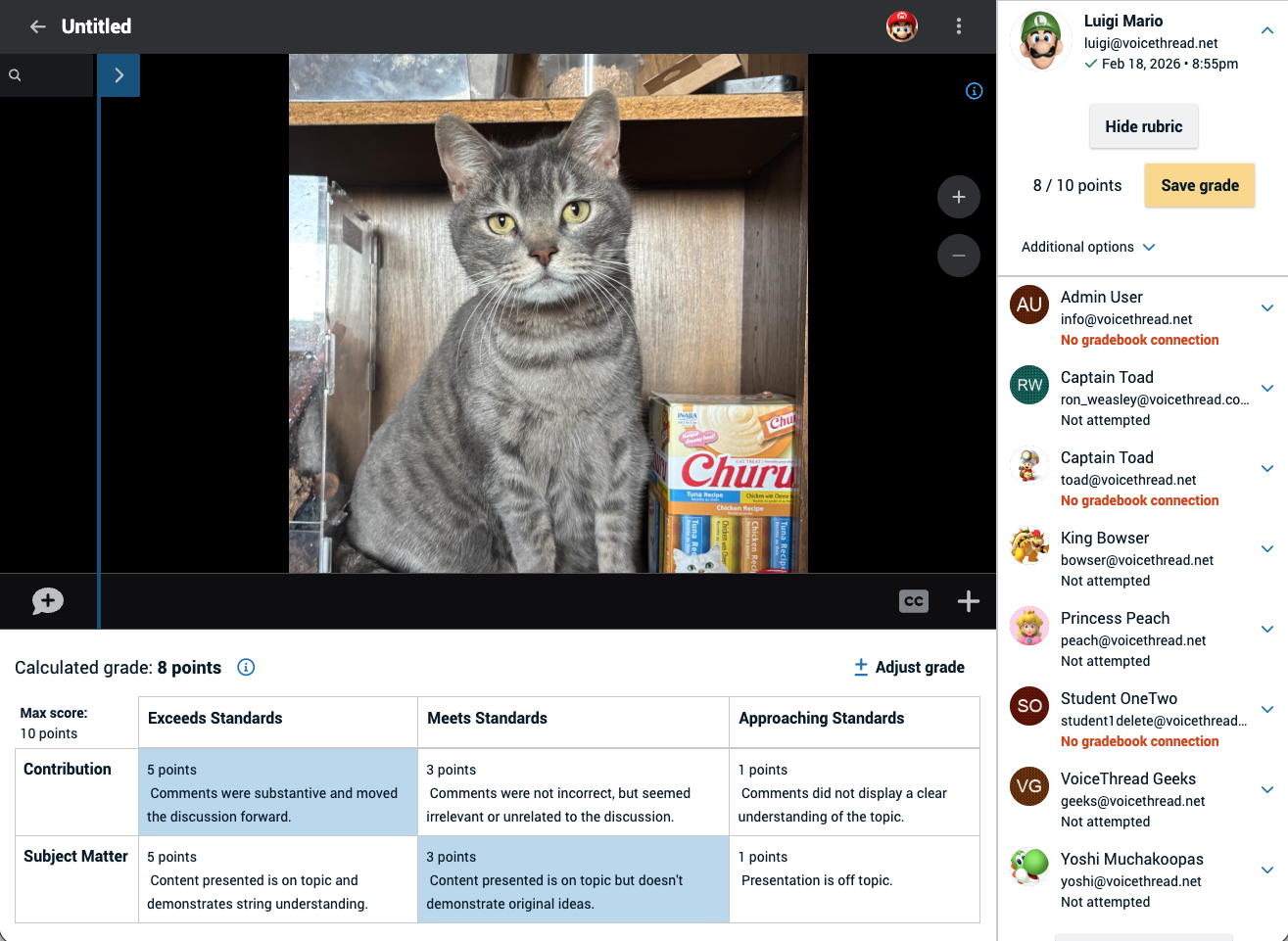
As instructors begin working on developing their fall courses, OAT is pleased to share that VoiceThread has enhanced its grading tools thanks to the addition of rubrics!
At the end of the VoiceThread assignment creation steps, the instructor specifies a rubric as the the grading mechanism and then assembles the rubric. Later, while reviewing a student's submission, the instructor clicks the appropriate score level for each criterion (exactly how rubrics work in Canvas). The final score is then transmitted back to the Canvas grade book. Simple!
Below is a screenshot of what the grading interface in VoiceThread, with the rubric area at the bottom.
Use cases
Use VoiceThread's rubric interface in assignments such as:
- Evaluating final course presentations from a "Create" assignment - the rubric's criteria could relate to the various aspects required in the presentation
- Grading the structure and content of student comments in a Commenting assignment (including student slides added to a shared VT) - how much were the comments meaningful or perfunctory?
Canvas Rubrics vs. VoiceThread Rubrics: Which to use?
Technically, a VoiceThread assignment in Canvas can already have a Canvas rubric attached to it for grading. Grading in that case is done by opening Speedgrader and then clicking through the rubric criteria to give the student their grade.
However, Speedgrader cannot directly display the VoiceThread content itself. Thus, to use Speedgrader's rubric, the instructor needs to open two tabs in their browser, one for the VoiceThread content and another for the Speedgrader interface. They then flip back and forth between the Speedgrader tab and the VoiceThread tab to complete the rubric grading. Arguably cumbersome!
The new VoiceThread rubric tool eliminates the need for multiple tabs. As part of the assignment setup within VoiceThread, instructors enable its rubric setting and build their rubric criteria and levels there (so: no Canvas rubric is used). Then, simply launch the VoiceThread activity and rubric grading is part of the grading interface within VoiceThread. As before, the final score is transmitted automatically back to the Canvas grade book. Students can review the rubric scores by visiting the VoiceThread activity. No Speedgrader use is necessary when using VoiceThread's rubric tool!
Learn more about VoiceThread rubrics
Return to top
Extended! Turnitin Clarity Pilot
To meet demand for deeper testing, the Turnitin Clarity pilot has been extended through the Fall 2026 term.
What is Clarity?
View the Clarity demo now
Turnitin Clarity gives instructors visibility into the student writing process, from first draft to final submission. Rather than just turning in a finished document created outside the LMS, students use the Clarity writing space to do their composition, editing, and submission. Akin to Microsoft Word or Google Docs, Clarity's text entry interface contains standard writing and formatting tools. Instructors can also enable/disable grammar and punctuation checking and citation formatting assistance.
Importantly, Clarity is not a "lockdown" environment. Instead, students' work in Clarity is saved automatically and they can return to the assignment as often as needed until the Due Date passes.
Clarity also allows instructors to guide students toward responsible use of A.I. in order to help them improve their writing. When enabled on an assignment by the instructor, the A.I. chat assistant is trained to guide rather than simply provide answers the way an LLM does (e.g., ChatGPT). Instead, Clarity can provide feedback to students on their progress based on a supplied rubric or help brainstorm topics and structure an outline. Compare student writing using Clarity vs using a popular LLM
Clarity's writing reports to instructors include insights into the student's writing process as well as flags for further review, such as the appearance of pasted text coming from outside the document. Instructors can also play back the version history of the document to gain visibility into the evolution of their students' writing. Any A.I. chat activity is included in the report along with Turnitin's existing similarity score and A.I. writing score. Additionally, the writing reports also provide peace of mind for students that there is data to show the originality of their work.
Why Use Clarity?
It's 2026 and instructors need to be adapting to the reality of AI tools being available to students. Sometimes those tools are obvious and sometimes the AI component in them isn't clearly highlighted but the result is AI-generated prose. Despite syllabus statements saying "no AI usage allowed", students and instructors remain confused and uncertain about what that actually means. This uncertainty leads to difficult situations regarding accusations of academic dishonesty that often leave students without means of establishing their innocence.
As such, instructors have two options if they are to continue assigning traditional long-form academic writing (i.e., essays, research term papers, etc.) in the era of AI:
Option 1: Retrofit and adjust the assignment design so that AI cannot reliably complete it.
Option 2: Provide students with a clear and explicit process for demonstrating the authenticity of the ideas and writing in their submission.
For those instructors not interested in Option 1, Clarity is the best way to accomplish Option 2, providing everyone with clear evidence of a student's writing process and their original thinking.
Instructor Resources for Clarity
The Clarity Pilot
Clarity is available in every course in Canvas right now, accessed as part of the Turnitin tool set found on the Assignments home page.
 Steps to create a new Clarity assignment: Step 1: Open the 'three dot' menu. Step 2: Select "Turnitin". Step 3: Click "Student Writing".
The pilot will last until the end of the Spring 2026 Fall 2026 semester with feedback gathered in order to guide the possible future licensing of the tool. Interested faculty are therefore invited to assign at least one writing assignment using the Clarity interface. Information on providing feedback will be announced at a later date.
Questions? Contact OAT!
Return to top
Regular & Substantive Interaction in Online Courses
Federal regulations require that online ("distance") courses, primarily those that are asynchronous in their delivery, contain adequate opportunities for regular and substantive interaction between the instructor and the students, as well as between students.
How to get started
OAT has developed a template module that can be downloaded and installed into any Canvas course through the Canvas Commons tool. Once added to a course, all of the content in the template can be modified. The template is also a starting point - its content does not conform to an officially sanctioned body of requirements. However, it's a great way to get started!
On Canvas, click the Canvas Commons icon and then search for "Regular & Substantive Interaction". Click the "Download" button to choose the course where the module will be added.
Review the module contents
Return to top
Turnitin A.I. Detection FAQ
Stan State provides access to Turnitin's AI Detector tool for all instructors. Normally, the detector is used as part of a Canvas assignment that uses Turnitin in some way. However, it is possible to have a stand-alone file uploaded to Turnitin for analysis.
When submitted to Turnitin, a paper is given a 'score' that corresponds to the percentage of long-form prose (i.e., sentences contained within many multiple paragraphs) that the detector has high confidence was not human-produced. Longer submissions are more accurately scored, while shorter submissions may be more frequently incorrectly flagged. The A.I. detector does not reliably detect AI-generated text in the form of non-prose, such as poetry, scripts, or code. Nor does it detect short-form/unconventional writing such as bullet points (short, non-sentence structures) or annotated bibliographies.
Remember: Turnitin's A.I. score is a flag for further consideration, not an accusation of misconduct in and of itself.
How does it work?
What parameters or flags does Turnitin’s model take into account when detecting AI writing?
What does the percentage in the AI writing detection indicator mean?
If students use Grammarly for grammar checks or paraphrasing/rewriting, does Turnitin detect it and flag it as AI?
How should instructors interpret the results?
Complete FAQ
Return to top