Body

THIS IS NOT THE CURRENT EDITION OF THE OAT UPDATE
Browse all OAT Updates
Issue Contents
New Announcements
Reminders
Missed an update? Browse all OAT Updates
New Announcements
Summer 2024 OCS Professional Development
The CSU Online Course Services department is offering several free courses this summer for tenure-track and lecture faculty. All courses are 3 weeks in length, online, asynchronous, and require 15-20 hours.
Registration opens April 1.
Courses:
- QLT Introduction to Teaching Online Using QLT
- QLT Advanced QLT Course in Teaching Online
- QLT Reviewing Courses Using the QLT Instrument
- AI Tools for Teaching & Learning
Course information and registration
Questions? Contact ocs@calstate.edu.
Return to top
AnnotatED 2024 Social Annotation Conference
 At Stan State, instructors have access to two tools for social annotation activities in their course: Hypothesis and Discussions Plus. This 2-day conference is organized by Hypothesis, but the content should be relevant to users of both tools.
Social annotation is the act of collaboratively marking up - annotating - a document. Annotations are typically visible to everyone in the course, and users can reply to annotations. Pedagogically, social annotation is often used to teach students how to read scholarly documents. Frequently, instructor pre-annotate a document with leading questions and ask students to consider and respond. Both Hypothesis and Discussions Plus can treat annotations as gradable assignments in Canvas.
When: April 17-18
Where: Zoom
Cost: Free
Schedule and Registration
Return to top
Turnitin AI Detection (Updated)
The Office of Academic Technology will be renewing its subscription to Turnitin, including the AI writing assessment feature. The AI assessment determines the percentage (if any) of the submitted text that was written by AI. For example, a submission with an AI score of 76% means that 76% of the text in the document was determined to have been written using generative AI. The AI score of a submission is visible to instructors only, and students are never shown it.
Though the AI assessment tool has been shown to have a very high accuracy, Turnitin is transparent that it may not always be accurate (it may misidentify both human and AI-generated text). For example, low AI scores (1%-20%) have a higher likelihood of being false positives, especially on short text passages (< 300-500 words). The AI score is most reliable on submissions of long-form writing (> 500-800 words), written in English, where full sentences and paragraphs are the organizing principle.
How does the AI detection work?
Importantly, like the Similarity score, the AI assessment only provides data, and is pointedly not making a determination about student misconduct. As such, it should not be used as the sole basis for adverse actions against a student. Overall, it takes further scrutiny and human judgment in conjunction with an organization's application of its specific academic policies to determine whether any academic misconduct has occurred.
Here are three tips for addressing AI writing in your class.
- State expectations up front. (See below for a syllabus statement tool.) How you address AI usage by your students falls on a continuum of permission, ranging from allowable on all assignments to disallowed on all assignments. Perhaps AI usage is permitted on some assignments with appropriate citation or for some parts of the assignment (not including a final submission). The guardrails are completely up to you, but communication with your students is key.
- The AI percentage score refers to "the percentage of long-form prose in the submission that was generated by AI." It is not an overall probability that AI text exists somewhere in the submission. If there is a concern about a particular submission, gather artifacts of previous writing as part of the conversation with the student. Artifacts such as previous drafts or even previous assignments can clearly demonstrate the student’s own voice or writing style. Having this information can help determine if the AI score is a problem or not.
- Prepare for false positives. Though the risk of false positives is low, especially for long submissions, it can't be discounted entirely. Read more about how to handle conversations with students after submission, including the importance of assuming positive intent on the part of the student even if uncertainty remains on the part of the instructor.
Return to top
Generative AI Syllabus Statement
The discussion of AI in education has taken two paths. In one, instructors are exploring how they can actively incorporate some aspect of AI into their teaching and their course design. In the other, instructors are concerned about how students should be allowed (or not) to use AI in their course work.
Providing a statement about AI usage in the course syllabus is important in both cases. The following tool developed by Chris Heard at Pepperdine University aims to help you craft a draft of a statement that works for you.
Generative AI Syllabus Statement Tool
Return to top
Message From OIT: Power Off Classroom Equipment
From OIT:
"This is a courtesy reminder from OIT to all faculty not to leave classrooms running after class is over. Please use the power button on the control panel to Power Off the room as you leave.
This will help reduce the amount of power consumed and extend life of classroom equipment. Please contact the Tech Support Desk with any questions at x3687."
Return to top
Reminders
VoiceThread Tip: Collect Student Comments on Lecture Videos
Often in an online class, the instructor will create and post a lecture video and require students to watch the video and provide some kind of comment or response. Those responses are then tracked and graded. The issue is how to efficiently keep track of who has submitted the required comment and what grade should they receive?
Let's cut to the chase: VoiceThread is a great tool for this kind of assignment.
Using a Commenting Assignment
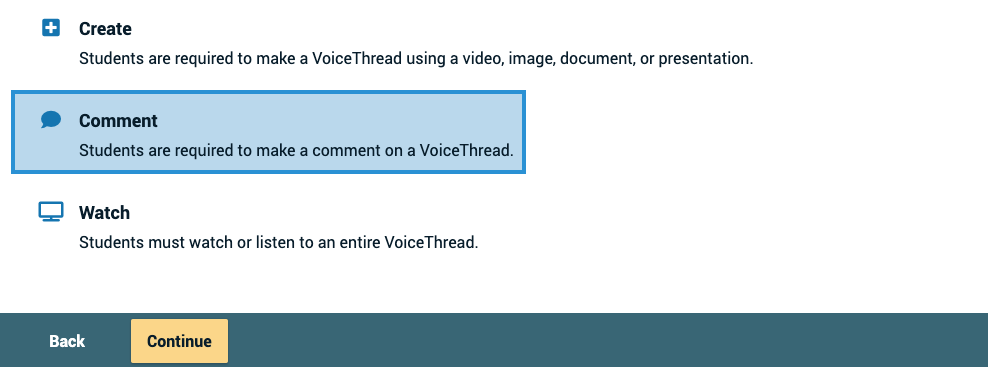 The Commenting assignment is one of three assignment types offered by VoiceThread. It's also the one that is best suited to capturing student responses to a lecture video. Additionally, by enabling comment moderation, comments can be made "private" between student and instructor, or left "public" for the whole class to see and respond to.
In this assignment, you will create a new VoiceThread presentation and upload your video file as the content. Specify how many comments they're required to make and whether the comments will be public or private. That's it! Then, the students watch the video and respond to by leaving their comments directly on the time line of the video. Their comments can be typed text or multimedia (audio and video).
Later, the instructor returns to the activity and views the comments of each student in VoiceThread and assigns a grade. The score is automatically transferred back to the Canvas grade book.
Questions? Contact OAT!
Return to top
Award Partial Credit in New Quizzes Multiple Choice Questions
In the New Quizzes tool in Canvas, you can set up a multiple choice question that awards different point values depending on the answer chosen. In other words: partial credit can be offered.
 In the settings of the question, open the "Options" section. Then, check the box for Vary points by answer. Finally, configure the point values for each of the answers.
Learn more
Return to top
Moodle End-of-Life Time Line
At the conclusion of the spring 2024 term, OAT will begin winding down the Moodle server currently being hosted by OIT. The following timeline was approved by the Academic Technology and Learning Committee on 02/19/24.
- No active courses will be allowed on the platform following spring 2024.
- Moodle will remain available for users to login for document retrieval, grade book retrieval, course backup, etc. through May 31, 2025.
- Moodle will be shut down and unavailable on June 1, 2025.
Return to top
Informal QLT Course Assessments for Winter and Spring Courses
All instructors who are teaching asynchronous online courses in Winter and Spring are invited to have their course informally assessed using the QLT rubric. QLT consists of 52 'objectives' spread across 9 categories of best practices in online course design. It was assembled by a collection of CSU instructional designers and faculty members and was most recently updated in 2022.
After requesting an assessment, OAT will review the course with the QLT rubric and send the feedback to the instructor only. A follow-up consultation to discuss the assessment can be scheduled if desired. This is a great way to get a second pair of eyes on your course for constructive feedback!
Email oatsupport@csustan.edu and specify which course you're interested in. Content should be in a regular Canvas shell.
Additional links:
Return to top
Canvas Support Options
All Canvas users have access to various support options when questions or problems arise.
Instructors
Options for instructors are:
- Call Canvas support 24x7 (open Help menu)
- Chat with Canvas support 24x7 (open Help menu)
- Email oatsupport@csustan.edu
- Review online documentation
In general, the OIT Tech Support desk cannot help with Canvas issues - all Canvas administration is handled by OAT and it is best to start with one of the options listed above.
Students
Students can get basic support in these ways:
- Chat with Canvas support 24x7 (open Help menu)
- Review online documentation
Any issue that cannot be solved by Canvas support will be redirected to OAT for further assistance.
Return to top
Ally Accessibility Gauges
Ally is the automated accessibility checking tool that is installed within Stan State's Canvas system. This tool makes it easy to spot accessibility issues with your course materials and ensure access for all students. There are two main purposes of the Ally tool:
- Scan every piece of content/document/image in a course and gauge its accessibility. Instructors are then guided through steps to address the accessibility issues. The severity of issues (and the lack of issues at all!) are indicated by a color-coded system of gauges.
- Provide students with alternate formats for most content, and even language translations in some cases. Alternate formats may be PDF versions of documents, spoken audio versions of documents, etc.
Gauge Colors & Access
Ally uses a small gauge icon next to each piece of content or image to represent its accessibility status. The colors correspond to those on a traffic stop light:

The gauges are only visible to instructors. Students never see the accessibility status of an item. Instead, they only see a small "download" icon next to each item that allows them to access alternative formats for the item.
More Information
Learn more about Ally and accessibility.
Return to top