Body

THIS IS NOT THE MOST RECENT OAT UPDATE
Issue Contents
Announcements
Reminders
Missed an update? Browse the OAT Update archives
Announcements
Fall 2026 Canvas Basics and Enhancements Workshops
Every August, OAT offers a series of workshops for the Fall semester that are designed to get instructors of all skill levels comfortable using Canvas, the university's primary LMS for course web sites and online teaching. The workshops are grouped into two categories: Canvas Basics and Canvas Enhancements. Canvas Basics covers introductory information about various Canvas features and tools. Canvas Enhancements explore additional tools that connect to Canvas and enhance the learning experience.
Remember: register for a session to receive the recording if you're unable to attend live.
Can't wait until August? Contact OAT for assistance with any of these topics right now.
Canvas Basics
|
Canvas Enhancements
|
1. Your Canvas Account + Modules
Learn to manage and customize your Canvas account and take a first look at organizing a course by adding files and links to Modules.
- Monday, August 10
- 11 am - 12 pm
- Register
2. Communicating on Canvas + UDOIT Accessibility
Learn about announcements, emailing your class, creating content and links using the Rich Content Editor, as well as how to improve the accessibility of course materials using UDOIT.
- Tuesday, August 11
- 11 am - 12 pm
- Register
3. Canvas (New) Quizzes
An introduction to creating New Quizzes in Canvas. Primary attention will be given to the New Quizzes engine with a brief look at the Classic quiz engine.
- Wednesday, August 12
- 11 am - 12pm
- Register
4. Assignments & Rubrics & Speedgrader, Oh My!
Learn how to build a graded assignment and create a rubric that will be applied using Speedgrader. This session will also show you how to organize course activities to use a weighted grade book.
- Thursday, August 13
- 11 am - 12 pm
- Register
5. Canvas Potpourri
Discussions, grade book management, tracking attendance, creating custom navigation links, closing courses, and handling incompletes.
- Friday, August 14
- 11 am - 12 pm
- Register
|
1. VoiceThread
VoiceThread offers a highly flexible and interactive way for instructors and students to create presentations and engage with multimedia content. Generate valuable social presence (RSI) in asynchronous online courses. Learn more...
2. Discussions Plus (powered by Harmonize)
The "plus" means it's better! Create multiple kinds of due dates ("milestones") within discussions, add annotations and feedback to uploaded videos, easily create social reading activities and private journaling assignments with optional AI coaching. Learn more...
3. Padlet
A free-form digital bulletin board used to curate media and generate collaborative learning. Learn more...
4. Turnitin Clarity
Bring transparency to the writing process while providing students with an environment that offers appropriate AI coaching and validates the authenticity of their work. If you are assigning students to write long-form academic prose, Clarity can be an important part of that experience. Learn more...
5. Canvas Enhancements Potpourri
Learn more about Panopto (video storage), Hypothesis (social reading), and Respondus Lockdown Browser (secure test-taking environment).
|
Return to top
UDOIT Summer School for Educators
 In the 25-26 academic year, Stan State instructors made impressive strides in ensuring the accessibility of their course materials. Although the federal deadline for compliance has been extended until April 2027, it's important that we keep up the momentum!
To that end, everyone is invited to join Cidi Labs for UDOIT Summer School for Educators on August 12 & 13 (10:00 am – 11:00 am) and learn time-saving ways to improve accessibility directly inside your Canvas courses.
Whether you're new to accessibility or looking for more efficient workflows, these live sessions will walk you through the UDOIT accessibility tool and the techniques that make remediation faster and easier.
Day 1: Improve Canvas Content Accessibility
Learn how to identify and remediate accessibility issues in Canvas pages, assignments, discussions, and more.
Day 2: Simplify Course File Remediation
See how UDOIT helps you review course files, generate accessible alternative formats, and improve document accessibility.
Can't Attend Live?
Register anyway! Everyone who registers will receive the session recordings, so you can watch whenever it fits your schedule or revisit the material later.
Save Your Spot For Summer School
Return to top
Reminders
Improved Grading in VoiceThread
As instructors begin turning toward developing summer and fall online courses, OAT is pleased to share that VoiceThread has enhanced its grading tools thanks to the addition of rubrics!
During the assignment creation, the instructor specifies a rubric as the the grading mechanism and then assembles the rubric. While reviewing a student's submission, the instructor clicks the appropriate score level for each criterion (exactly how rubrics work in Canvas). The final score is then transmitted back to the Canvas grade book.
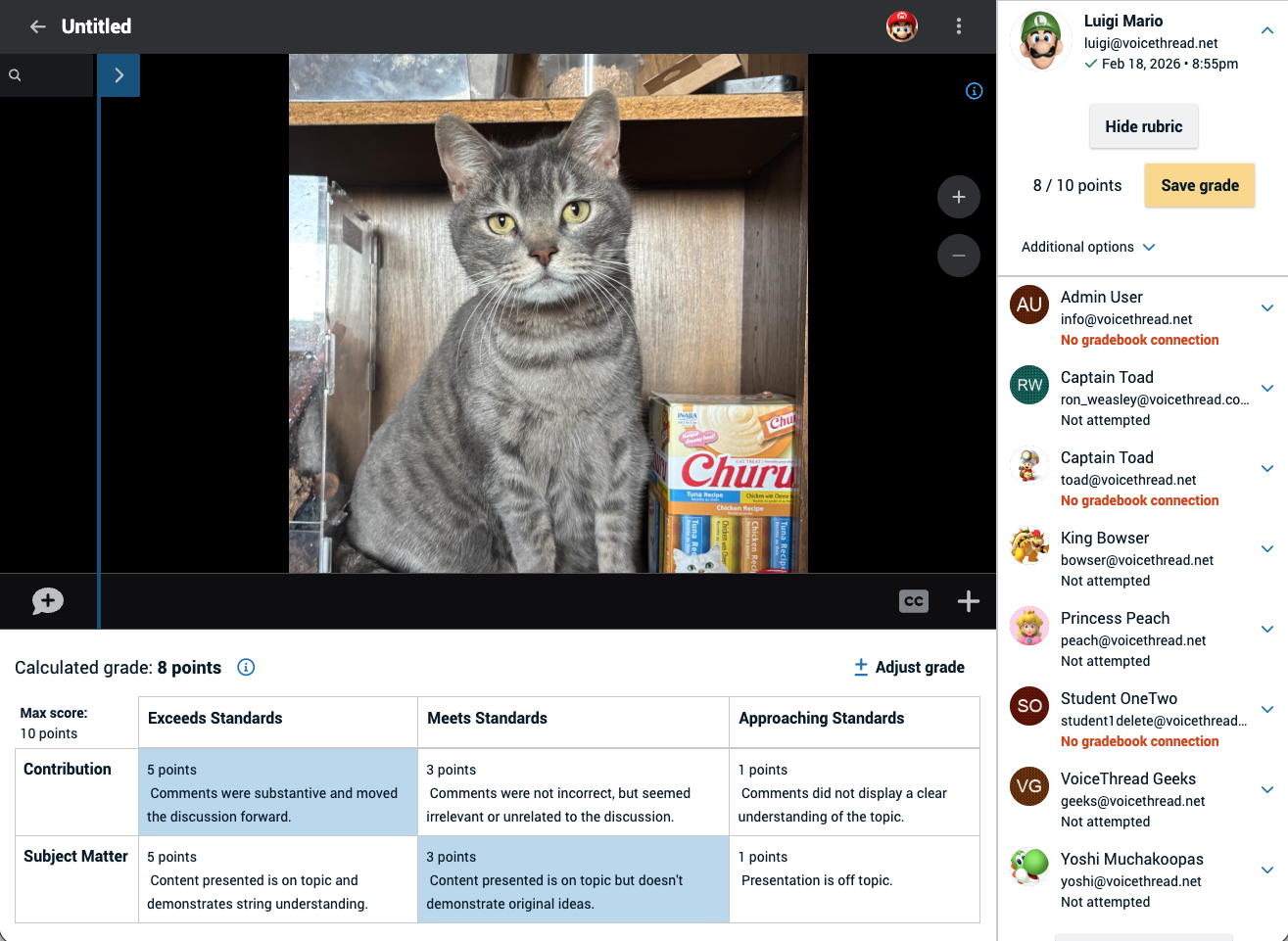
Use cases
Use VoiceThread's rubric interface in assignments such as:
- Evaluating final course presentations from a Create assignment
- Grading the structure and content of student comments in a Commenting assignment (including student slides added to a shared VT)
Canvas Rubrics vs. VoiceThread Rubrics: Which to use?
A VoiceThread assignment in Canvas can already have a Canvas rubric attached to it for grading. Grading in that case is done by opening Speedgrader and then clicking through the rubric criteria. However, in this approach Speedgrader does not display the student submission itself because a student's VoiceThread content does not feed back into Speedgrader. As such, the instructor would need to open the VoiceThread content in a separate browser tab in order to open the student's submission. They would then flip back and forth between the Speedgrader tab and the VoiceThread tab to complete the grading.
The new VoiceThread rubric tool eliminates the need to have multiple tabs open in order to use a rubric for grading. With the new VoiceThread rubric tool, instructors simply launch the VoiceThread activity and rubric grading is now a part of the grading interface of VoiceThread. As before, the final score is transmitted automatically to the Canvas grade book. No Speedgrader use is necessary when using VoiceThread's rubric tool!
Learn more about VoiceThread rubrics
Return to top
Extended! Turnitin Clarity Pilot
 To meet demand for deeper testing, the Turnitin Clarity pilot has been extended through the Fall 2026 term.
What is Clarity?
View the Clarity demo now
Turnitin Clarity gives instructors visibility into the student writing process, from first draft to final submission. Rather than just turning in a finished document created outside the LMS, students use the Clarity writing space to do their composition, editing, and submission. Akin to Microsoft Word or Google Docs, Clarity's text entry interface contains standard writing and formatting tools. Instructors can also enable/disable grammar and punctuation checking and citation formatting assistance.
Importantly, Clarity is not a "lockdown" environment. Instead, students' work in Clarity is saved automatically and they can return to the assignment as often as needed until the Due Date passes.
Clarity also allows instructors to guide students toward responsible use of A.I. in order to help them improve their writing. When enabled on an assignment by the instructor, the A.I. chat assistant is trained to guide rather than simply provide answers the way an LLM does (e.g., ChatGPT). Instead, Clarity can provide feedback to students on their progress based on a supplied rubric or help brainstorm topics and structure an outline. Compare student writing using Clarity vs using a popular LLM
Clarity's writing reports to instructors include insights into the student's writing process as well as flags for further review, such as the appearance of pasted text coming from outside the document. Instructors can also play back the version history of the document to gain visibility into the evolution of their students' writing. Any A.I. chat activity is included in the report along with Turnitin's existing similarity score and A.I. writing score. Additionally, the writing reports also provide peace of mind for students that there is data to show the originality of their work.
Why Use Clarity?
It's 2026 and instructors need to be adapting to the reality of AI tools being available to students. Sometimes those tools are obvious and sometimes the AI component in them isn't clearly highlighted but the result is AI-generated prose. Despite syllabus statements saying "no AI usage allowed", students and instructors remain confused and uncertain about what that actually means. This uncertainty leads to difficult situations regarding accusations of academic dishonesty that often leave students without means of establishing their innocence.
As such, instructors have two options if they are to continue assigning traditional long-form academic writing (i.e., essays, research term papers, etc.) in the era of AI:
Option 1: Retrofit and adjust the assignment design so that AI cannot reliably complete it.
Option 2: Provide students with a clear and explicit process for demonstrating the authenticity of the ideas and writing in their submission.
For those instructors not interested in Option 1, Clarity is the best way to accomplish Option 2, providing everyone with clear evidence of a student's writing process and their original thinking.
Instructor Resources for Clarity
The Clarity Pilot
Clarity is available in every course in Canvas right now, accessed as part of the Turnitin tool set found on the Assignments home page.
 Steps to create a new Clarity assignment: Step 1: Open the 'three dot' menu. Step 2: Select "Turnitin". Step 3: Click "Student Writing".
The pilot will last until the end of the Spring 2026 Fall 2026 semester with feedback gathered in order to guide the possible future licensing of the tool. Interested faculty are therefore invited to assign at least one writing assignment using the Clarity interface. Information on providing feedback will be announced at a later date.
Questions? Contact OAT!
Return to top
Regular & Substantive Interaction in Online Courses
Federal regulations require that online ("distance") courses, primarily those that are asynchronous in their delivery, contain adequate opportunities for regular and substantive interaction between the instructor and the students, as well as between students.
How to get started
OAT has developed a template module that can be downloaded and installed into any Canvas course through the Canvas Commons tool. Once added to a course, all of the content in the template can be modified. The template is also a starting point - its content does not conform to an officially sanctioned body of requirements. However, it's a great way to get started!
On Canvas, click the Canvas Commons icon and then search for "Regular & Substantive Interaction". Click the "Download" button to choose the course where the module will be added.
Review the module contents
Return to top
Turnitin A.I. Detection FAQ
Stan State provides access to Turnitin's AI Detector tool for all instructors. Normally, the detector is used as part of a Canvas assignment that uses Turnitin in some way. However, it is possible to have a stand-alone file uploaded to Turnitin for analysis.
When submitted to Turnitin, a paper is given a 'score' that corresponds to the percentage of long-form prose (i.e., sentences contained within many multiple paragraphs) that the detector has high confidence was not human-produced. Longer submissions are more accurately scored, while shorter submissions may be more frequently incorrectly flagged. The A.I. detector does not reliably detect AI-generated text in the form of non-prose, such as poetry, scripts, or code. Nor does it detect short-form/unconventional writing such as bullet points (short, non-sentence structures) or annotated bibliographies.
Remember: Turnitin's A.I. score is a flag for further consideration, not an accusation of misconduct in and of itself.
How does it work?
What parameters or flags does Turnitin’s model take into account when detecting AI writing?
What does the percentage in the AI writing detection indicator mean?
If students use Grammarly for grammar checks, does Turnitin detect it and flag it as AI?
If students use Grammarly’s paraphrasing tool, will it flag their content as AI-generated?
How should instructors interpret the results?
Complete FAQ
Return to top