
THIS IS NOT THE CURRENT EDITION OF THE OAT UPDATE
Browse all OAT Updates
New Announcements
Reminders
Browse all OAT Updates
New Announcements
Measuring Student Learning Objectives in Canvas
Join OAT on Tuesday, May 2 from 1-2 pm to learn about Canvas's Outcomes tool and how to implement it in your summer class! Outcomes are the way Canvas enables instructors to create and assess all kinds of learning objectives. The results of these assessments can be used in a variety of ways, such as in the Learning Mastery Gradebook which gives an instructor one type of insight of individual student achievement. Outcomes can also be used to provide assessment data to departments or other university organizations (e.g., for program accreditation purposes).
Registration
A view of the Learning Mastery Grade Book in a Canvas course:

Registration
Return to top
Tool of the Week #1: Hypothesis
 Connect your discussion activities directly to your course texts through social annotation using Hypothesis. Using Hypothesis, instructors can post a course reading in Canvas (PDF, JSTOR link, etc) that students highlight and annotate. By default, the annotations are viewable by the whole class, which therefore makes reading active but also social. Annotation comments also form the basis for mini-discussions in the margins of the text.
Workshop: Activating Annotation in Canvas
Hypothesis annotations also give the instructor insight into student thinking regardless of the kind of text being annotated. Start simple with the course syllabus - use Hypothesis as the place for them to ask questions or acknowledge course principles. Or, upload sample essays as a way to stimulate student thinking as they begin their own work.
Learn more
October 2022 webinar featuring Stan State faculty
Hypothesis information page
Getting started assignments
Contact oat@csustan.edu to learn more!
Return to top
Tool of the Week #2: Discussions Plus
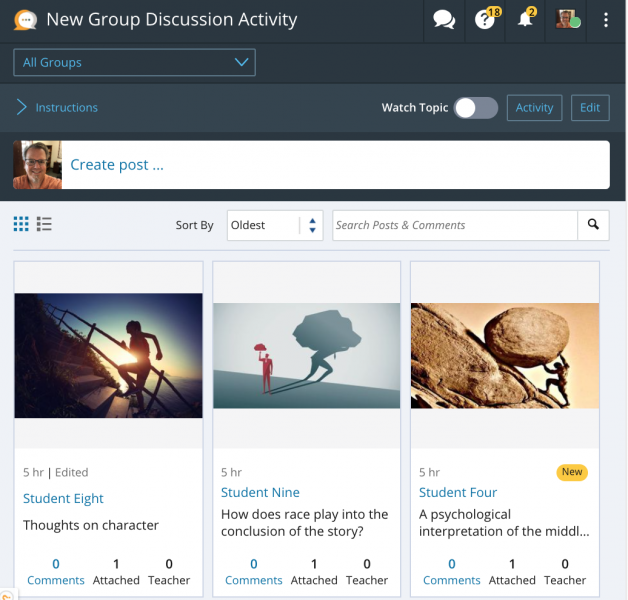 Discussions Plus (a.k.a "Harmonize") provides a richer, enhanced discussion board experience compared to Canvas's built-in discussion tool. With Discussions Plus, you have access to the following features:
- Activities can have requirements for minimum posts, comments, and replies (plus multiple due dates!)
- Instructors can specify minimum number of posts, comments, and replies for tracking purposes (or autograding)
- Students can attach image or video files to a post or comment
- Images and videos can be annotated by peers for feedback purposes
- Discussions can be created as private journals between student and instructor
- Anonymous posts in ungraded activities
Learn more
Introductory video (10 min.):
OAT's Discussions Plus information page
Creating PDF, Image, and Video Annotations in posts
Return to top
Bonus - Comparing Annotation Tools: Hypothesis vs Discussions Plus
Recently, Discussions Plus added the ability to create annotation activities in Canvas. As the second annotation tool available to instructors at Stan State, how do the two tools compare? Here is a brief run-down of each, both plusses and minuses.
Discussions Plus
 Generally speaking, a simpler workflow to get basic social annotation activities going in your classes. Easy to set up and get started.
- Ungraded activities only (no assignments)
- Select text in document and type the comment
- Reply to a comment
- Can't limit commenting to course groups
- Upload a file from computer only (incl. local copies of OneDrive files)
- Drop 'pins' onto the document and write a comment (useful for annotating non-text PDFs or referring to images in a PDF)
- View one annotation/comment at a time (no comment stream)
- Simple text-only comments and replies allowed
- Customizable color for highlight for each comment
Hypothesis
 Generally a more polished, premium product although with some minor limitations.
- Graded or ungraded activities possible
- Can limit commenting to course groups
- Upload a file only from specific online locations (incl. JSTOR but not directly from computer)
- Can only add annotation to selectable text
- Comment 'stream' visible always (your annotations plus others')
- Private annotations possible
- Formatting and multimedia allowed in each comment and reply
- All annotations are yellow; not customizable
Want to talk annotations? Contact oat@csustan.edu!
Return to top
Reminders
Canvas enhancement: Submit assignment file on behalf of a student
In Canvas assignments, it is now possible for an instructor to submit a file on behalf of a student. This feature is available automatically in every course to the instructor(s). Instructors can submit a single file or multiple files.
 How to submit
- Open the Grades page of the course
- Click into the student's cell in the appropriate assignment column and then click the "->" icon to open the details tray
- Click "Submit for Student"
- Choose the file to upload and submit
Note: The instructor's name will be noted as the submitter of the file in the grade details, not the student's name.
Limitations
- Only works with regular Canvas assignments, not Turnitin or other External Tools assignments
- A File Upload submission type must be allowed to submit an assignment on behalf of a student. Other submission types are acceptable in the settings, in addition to File Upload, but File Upload must be an option.
- Instructors cannot type a submission into a text box for the student.
Canvas documentation
Return to top
Turnitin and AI Writing Detection Now Available
 A preview version of Turnitin's AI writing detection tool is now present as part of Turnitin's standard similarity report. AI writing detection is enabled automatically in all reports and Instructors won't need to make any modifications to their Turnitin work flows or existing assignments. AI checking cannot be disabled at this time.
In addition to tracking sources of similarity among Turnitin's archive of student writing, the amount (e.g. 75%) of writing likely written by AI will also be indicated to the instructor for each submission (see screen shot, right). The AI score is hidden from students.
Importantly, Turnitin's technology does not make a determination or judgement of academic misconduct. It is present merely as another data point for instructors to use in their evaluation of student writing.
Turnitin AI Links
Download the FAQ
What about false positives?
Why you need to include AI writing in your honor code and curriculum
Turnitin information about AI detection
Recording: CSU - Turnitin webinar on AI in academic integrity (also see Google Slides)
Return to top
CSU Online Course Services Summer Training
The Online Course Services (OCS) division of the Chancellor's Office is offering a full slate of FREE professional development opportunities this summer. Courses are generally three weeks long and are completed asynchronously online. Time commitment is approximately 15-20 hours per course.
Summer Session 1: May 29 - June 18, 2023
Summer Session 2: June 26 - July 23, 2023 (four week session due to July 3-9 break for facilitators)
Summer Session 3: July 24 - August 13, 2023
OCS Course Catalog
CSU Quality Learning and Teaching (QLT)
- Introduction to Teaching Online Using QLT
- Advanced QLT Course in Teaching Online
- Reviewing Courses Using the QLT Rubric
Quality Matters (QM)
- Applying the Quality Matters (QM) Rubric
- Designing Your Online Course
- Improving Your Online Course
Complete course details and registration information
Return to top
Ally Accessibility Gauges
Ally is the automated accessibility checking tool that is installed within Stan State's Canvas system. This tool makes it easy to spot accessibility issues with your course materials and ensure access for all students. There are two main purposes of the Ally tool:
- Scan every piece of content/document/image in a course and gauge its accessibility. Instructors are then guided through steps to address the accessibility issues. The severity of issues (and the lack of issues at all!) are indicated by a color-coded system of gauges.
- Provide students with alternate formats for most content, and even language translations in some cases. Alternate formats may be PDF versions of documents, spoken audio versions of documents, etc.
Gauge Colors & Access
Ally uses a small gauge icon next to each piece of content or image to represent its accessibility status. The colors correspond to those on a traffic stop light:

The gauges are only visible to instructors. Students never see the accessibility status of an item. Instead, they only see a small "download" icon next to each item that allows them to access alternative formats for the item.
More Information
Learn more about Ally and accessibility.
Return to top
Canvas Teacher App
 It's the Modern Era™, so everything has an app, even for Canvas instructors. In addition to the app for Students, instructors can install the Teachers app to help manage courses when you're not in front of a laptop or desktop computer.
Use the Teacher app for the following situations:
- Create a course Announcement (will be pushed to students based on their account notification preferences)
- Send a message to a specific student or class (will be pushed to students based on their account notification preferences)
- View your course and/or module content
- Grade submitted assignments and discussion posts
The Canvas Instructor guides have full details on the capabilities of the app (available in the app stores for iOS and Android)
Return to top
2022-23 Faculty Ambassadors for Canvas
This year, OAT is again sponsoring the FAC program, which makes experienced Canvas instructors available to each college, as a supplement to OAT staff. Instructors may find it more helpful to work with other instructors in their general discipline on questions related to Canvas, and are encouraged to contact these individuals.
2022-23 Ambassadors
Return to top