
Issue Contents
Announcements
Reminders
Missed an update? Browse the OAT Update archives
Announcements
Improved Grading in VoiceThread
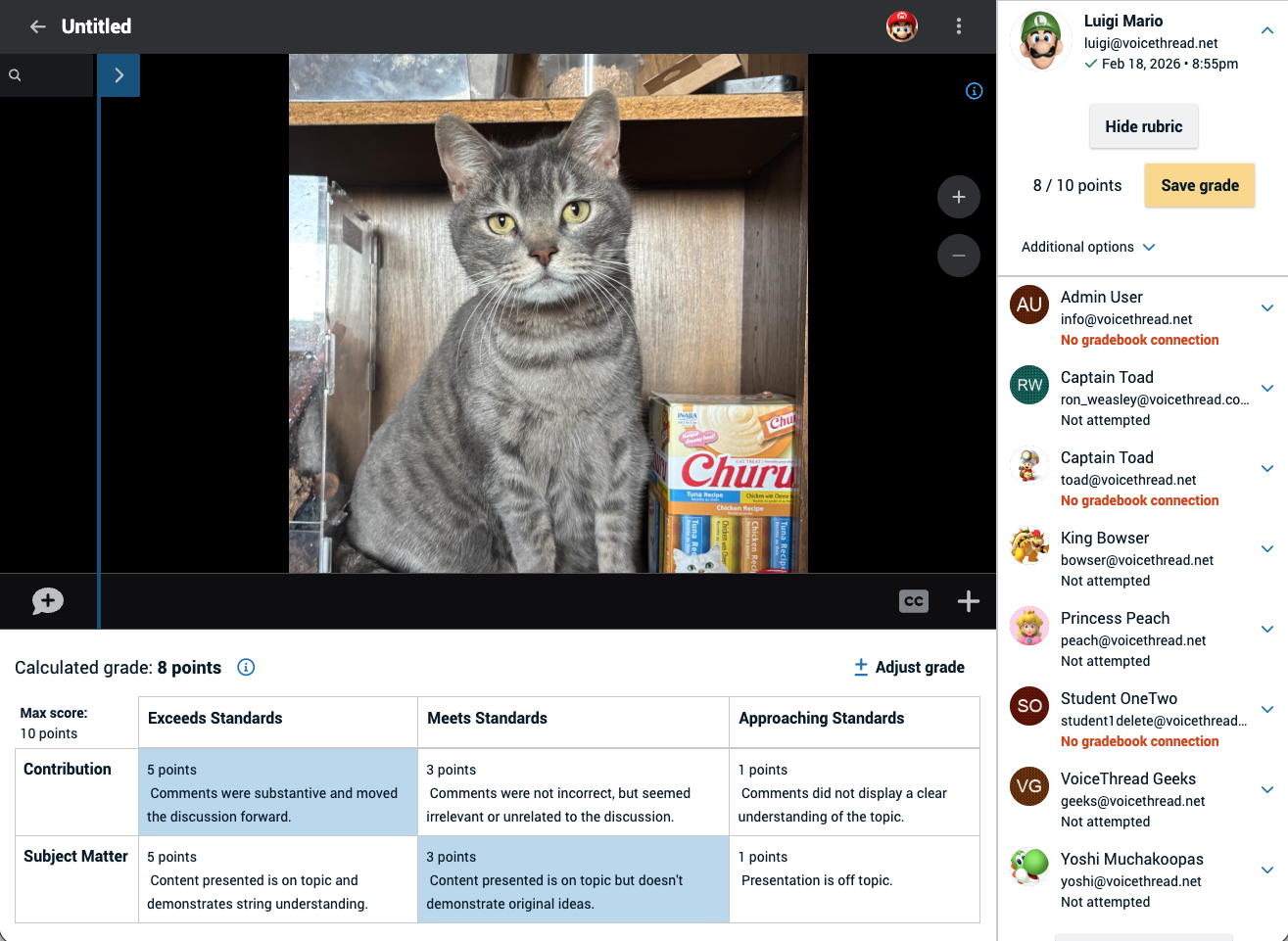 As instructors begin turning toward developing summer and fall online courses, OAT is pleased to share that VoiceThread has enhanced its grading tools thanks to the addition of rubrics!
During the assignment creation, the instructor specifies a rubric as the the grading mechanism and then assembles the rubric. While reviewing a student's submission, the instructor clicks the appropriate score level for each criterion (exactly how rubrics work in Canvas). The final score is then transmitted back to the Canvas grade book.
Use cases
Use VoiceThread's rubric interface in assignments such as:
- Evaluating final course presentations from a Create assignment
- Grading the structure and content of student comments in a Commenting assignment (including student slides added to a shared VT)
Canvas Rubrics vs. VoiceThread Rubrics: Which to use?
A VoiceThread assignment in Canvas can already have a Canvas rubric attached to it for grading. Grading in that case is done by opening Speedgrader and then clicking through the rubric criteria. However, in this approach Speedgrader does not display the student submission itself because a student's VoiceThread content does not feed back into Speedgrader. As such, the instructor would need to open the VoiceThread content in a separate browser tab in order to open the student's submission. They would then flip back and forth between the Speedgrader tab and the VoiceThread tab to complete the grading.
The new VoiceThread rubric tool eliminates the need to have multiple tabs open in order to use a rubric for grading. With the new VoiceThread rubric tool, instructors simply launch the VoiceThread activity and rubric grading is now a part of the grading interface of VoiceThread. As before, the final score is transmitted automatically to the Canvas grade book. No Speedgrader use is necessary when using VoiceThread's rubric tool!
Learn more about VoiceThread rubrics
Return to top
AI in Academia & the World
Led by Leann McArthur, Turnitin's Customer Success Manager for the CSU system, this session explores the evolving landscape of AI-driven tools available to students today. We will learn about AI "study tools" being marketed to students, with a live demonstration of some of these products. We will also look at the ways in which an array of productivity, accessibility, and other study tools have changed over time, against a backdrop of how students have already been impacted by Generative AI. For any faculty or departments considering curriculum revision, this session can help solidify why curriculum revision will be your best investment in time and resources. Attendees are encouraged to use this information to help guide their students.
Return to top
Teaching with GenAI: What CSU faculty are learning
Thursdays in April, 12-1pm
Register Now
Learn how CSU faculty are investigating the implications of generative AI for teaching and student learning through a range of applied projects.
Each session features two Artificial Intelligence Educational Innovations Challenge projects:
April 23: Learn by Doing with Agentic Design (San Luis Obispo) + TBD
April 30: TBD
CSU authentication is required to register and attend.
Recordings will be available for later viewing.
Return to top
Reminders
AI Literacy Activity: Can your students spot what AI got wrong?
Using either Hypothesis or Harmonize's PDF Annotation activity, challenge your students to think critically about content that may have been AI-generated. Can they spot mistakes or misstatements?
Source Materials
Hypothesis has created four readings that contain a variety of AI fabrications, some obvious and some less so:
| Passage |
Subject |
Best For |
| 1. The Space Race |
History |
Any discipline — broadly accessible |
| 2. The American Revolution |
History |
Humanities, general education |
| 3. Governing the Machine |
Policy |
Social science, law, political science |
| 4. Python Code Review |
STEM |
Computer science, data science |
Even if you're not teaching one of these subjects, students should get practice interrogating writing for the presence of AI hallucinations. The value of these writings is they've been specially created with this in mind.
Download the activity materials
Included in the download:
- Instructor guide
- Passage PDFs (including annotation prompts)
- Answer keys
How it works
Step 1: Choose one of four specially prepared readings and upload the document as a Hypothesis or Harmonize activity. This works well as a simple participation-based assignment rather than a right-or-wrong quiz. A basic rubric is included in the instructor materials.
Step 1.5: Decide whether students will know ahead of time if the source was AI-generated. If so, you're in "Scavenger Hunt" mode. If not, you're in "Discovery" mode.
Step 2: In small groups, students collectively read and annotate: check claims, verify citations, flag errors. (don't run the activity as an individual activity)
Step 3: 3-5 days after launch, do an in-class debrief. Use the provided answer key for the passage to discuss what was found and what was missed.
Have feedback on this activity? Share it with OAT!
Return to top
Extended! Turnitin Clarity Pilot
 To meet demand for deeper testing, the Turnitin Clarity pilot has been extended through the Fall 2026 term.
What is Clarity?
View the Clarity demo now
Turnitin Clarity gives instructors visibility into the student writing process, from first draft to final submission. Rather than just turning in a finished document created outside the LMS, students use the Clarity writing space to do their composition, editing, and submission. Akin to Microsoft Word or Google Docs, Clarity's text entry interface contains standard writing and formatting tools. Instructors can also enable/disable grammar and punctuation checking and citation formatting assistance.
Importantly, Clarity is not a "lockdown" environment. Instead, students' work in Clarity is saved automatically and they can return to the assignment as often as needed until the Due Date passes.
Clarity also allows instructors to guide students toward responsible use of A.I. in order to help them improve their writing. When enabled on an assignment by the instructor, the A.I. chat assistant is trained to guide rather than simply provide answers, to provide feedback to students on their progress based on a supplied rubric or help brainstorm topics and structure an outline.
Clarity's writing reports to instructors include insights into the student's writing process as well as flags for further review, such as the appearance of pasted text coming from outside the document. Instructors can also play back the version history of the document to gain visibility into the evolution of their students' writing. Any A.I. chat activity is included in the report along with Turnitin's existing similarity score and A.I. writing score. Additionally, the writing reports also provide peace of mind for students that there is data to show the originality of their work.
Instructor Resources
The Clarity Pilot
Clarity is available in every course in Canvas right now, accessed as part of the Turnitin tool set found on the Assignments home page.
 Steps to create a new Clarity assignment: Step 1: Open the 'three dot' menu. Step 2: Select "Turnitin". Step 3: Click "Student Writing".
The pilot will last until the end of the Spring semester with feedback gathered in order to guide the possible future licensing of the tool. Interested faculty are therefore invited to assign at least one writing assignment using the Clarity interface. Information on providing feedback will be announced at a later date.
Questions? Contact OAT!
Return to top
Accessibility Office Hours
Once again OAT and A4L will offer drop-in assistance with using UDOIT and TidyUp to improve the accessibility of Canvas course materials. No registration necessary!
Sessions will run every Friday from Feb. 1 until May 1. Times will alternate between 9 am and 12 pm each week.
Drop In Schedule
Fridays at 9 am: Feb 6, Feb 20, Mar 6, Mar 20, Apr 3, Apr 17, May 1
https://csustan.zoom.us/j/81979601642
Fridays at 12 pm: Feb 13, Feb, 27, Mar 13, Mar 27, Apr 10, Apr 24
https://csustan.zoom.us/j/81320593671
Return to top
Regular & Substantive Interaction in Online Courses
Federal regulations require that online ("distance") courses, primarily those that are asynchronous in their delivery, contain adequate opportunities for regular and substantive interaction between the instructor and the students, as well as between students.
How to get started
OAT has developed a template module that can be downloaded and installed into any Canvas course through the Canvas Commons tool. Once added to a course, all of the content in the template can be modified. The template is also a starting point - its content does not conform to an officially sanctioned body of requirements. However, it's a great way to get started!
On Canvas, click the Canvas Commons icon and then search for "Regular & Substantive Interaction". Click the "Download" button to choose the course where the module will be added.
Review the module contents
Return to top
Turnitin A.I. Detection FAQ
Stan State provides access to Turnitin's A.I. Detector tool for all instructors. Normally, the detector is used as part of a Canvas assignment that uses Turnitin in some way. However, it is possible to have a stand-alone file uploaded to Turnitin for analysis.
When submitted to Turnitin, a paper is given a 'score' that corresponds to the percentage of long-form prose (i.e., sentences contained within many multiple paragraphs) that the detector has high confidence was not human-produced. Longer submissions are more accurately scored, while shorter submissions may be more frequently incorrectly flagged. The A.I. detector does not reliably detect AI-generated text in the form of non-prose, such as poetry, scripts, or code. Nor does it detect short-form/unconventional writing such as bullet points (short, non-sentence structures) or annotated bibliographies.
Remember: Turnitin's A.I. score is a flag for further consideration, not an accusation of misconduct in and of itself.
How does it work?
What parameters or flags does Turnitin’s model take into account when detecting AI writing?
What does the percentage in the AI writing detection indicator mean?
If students use Grammarly for grammar checks, does Turnitin detect it and flag it as AI?
If students use Grammarly’s paraphrasing tool, will it flag their content as AI-generated?
How should instructors interpret the results?
Complete FAQ
Return to top
A4L Accessibility Hot Tips
Design & Remediation Hot 🔥 Tips
1. Downloading PDFs from Canvas Shells with UDOIT and Submitting for Remediation
AI Video Demo and directions for downloading PDFs from course shells:
Open your Canvas shell, look for 'Check Accessibility With UDOIT' on the left side*, open UDOIT, grant it access to scan your course. After scanning is complete, click on 'Home' at the top and scroll down to find/open the high impact scorecard, click on "PDFs", review your PDFs and download any that present with an error such as "File lacks tags needed for navigation by assistive technologies" or "Image-based file detected."
The error of "File is missing a title element" is very simple to fix on your own so we recommend you stick to submitting those with the more complex errors as listed above.
To submit PDFs for remediation, simply open our TDX form and submit a ‘Accessibility Work Request - On-Demand File Remediation’. Our student team will take care of the technical part! After your files are remediated and returned to you, simply go back to the Course Files tab in UDOIT and individually replace them by clicking "Replace file with an uploaded file" and UDOIT will do the rest for you!
* Students cannot see UDOIT or TidyUp links
2. Be Careful When Using with Tables in Canvas | Tables Are Not For Layout
Tables are sometimes used to create visual layouts on a web page, such as text arranged into two "columns", or to position an image next to a block of text. Back in the early days of the web, this was a common work around for the lack of regular HTML to do fancy page layout kinds of things.
We do not recommend this practice anymore. Tables should be used only for tabular data or content. Using tables to lay out regular page content will cause problems for screen reader users. For example, tables on web pages (i.e., Canvas pages) must have header rows and/or header columns so the screen reader can navigate through the table structure. If you're using a table to do page layout, your "table" doesn't have a structure like that, and that's confusing.
Have questions about how to lay out pages or images without tables? Contact OAT!
Return to top